Reading a media page
A tour of a media page covering what all the stats mean.
Updated
Every title in the library has its own page, and there's a lot packed into it. This guide walks through each part so nothing feels mysterious.
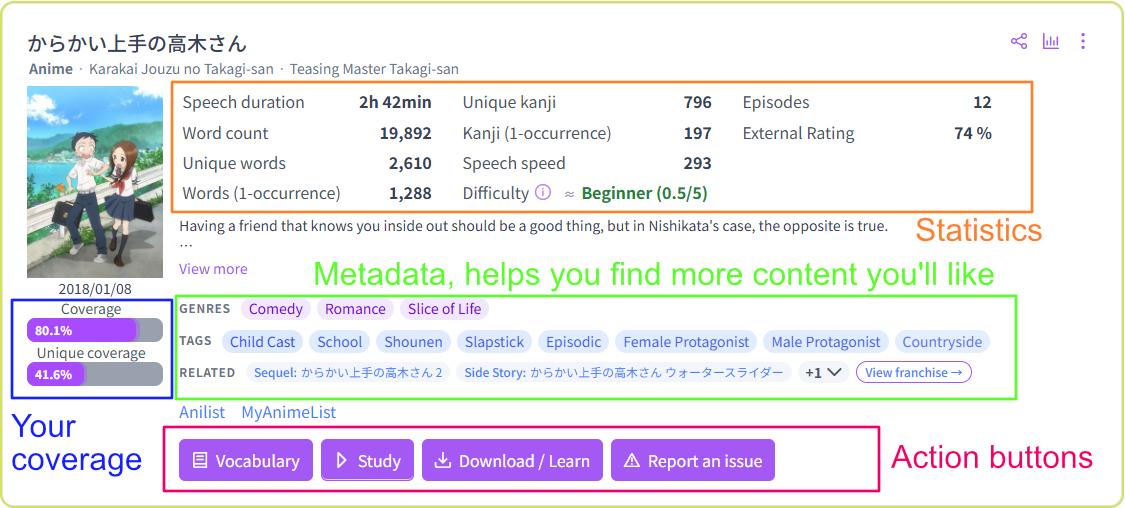
The header card
The top of the page shows the essentials at a glance:
- Your coverage (when logged in) — two bars under the cover, Coverage and Unique. Coverage weighs words by how often they appear, making it share of the text you'll understand. Unique coverage counts each distinct word once. The solid part of the bar is words you know well; the lighter part is words you're still learning. The coloured dot beside Coverage is your rough tier for the title, from red through to green.
- Length — character count (or speech duration for anime and dramas), word count, and unique words. This is a good indication of both the length of the work as well as the richness of the vocabulary.
- Kanji — unique kanji indicates all the different kanji that will appear in words in this title.
- Speech speed — for video media, this indicated the average speaking speed in mora per minute. This is derived from the subtitles line timing as well as the character count.
- Average sentence length — for novel-type media, this is the average length in characters of sentences. Longer sentences are generally harder to read.
- Dialogue percentage — for novel-type media, this is the percentage of the media that is spoken dialogue, which is anything between Japanese quotation marks such as 「」. This is a good indication of how much of the media is focused on character interaction and slice of life. Higher dialogue percentage usually means easier.
- Difficulty — the algorithmic score, possibly adjusted by community votes. More below.
- Subdeck counts — indicated as episodes, volumes, etc. You can click them or click the Details button to see the exact same details and actions on every volumes or episodes of the media. For example, you could download the deck of a single episode.
- Duration — for novel-type media, you can get an estimated duration of how long it will take you to read it, based on your reading speed from the quick settings.
- Additional statistics — by clicking the chart button at the top right, you can see additional advanced statistics about the media such as the number of words required to reach certain coverages, the difficulty over the length of the text, etc.
- Genres, tags and related — those help you find what a title is about as well as easily filter them and find other media that are related to them (prequels, sequels, adaptations…)
Reading the difficulty score
The little marks next to the difficulty are community input: ▲ means readers voted it harder than the algorithm thinks, ▼ easier (doubled arrows for a big gap), and ≈ means votes confirm the algorithm. Hover for the details. Want to help refine them? See Difficulty ratings.
The vocabulary list
The Vocabulary button opens the title's full vocabulary list. Three sort orders are available:
- Chronological (the default) — the order words first appear in the work.
- Deck Frequency — most frequent in this title first. The x12 style number is how many times the word appears in it.
- Global Frequency — by corpus-wide rank (the Rank # number), so you can spot which of the title's words are broadly useful.
You can search the list, filter by your own word states (only unknown, only mature, and so on), hide kana-only words, and include or exclude parts of speech. Each word's status control lets you mark it known or blacklist it right from the list.
Actions you can take
From the header card you can:
- Details — view the full details of a media and its subdecks, see similar media
- Download / Learn — download an Anki deck, text list, or CSV of the vocabulary, download an occurence-based frequency dictionary or bulk-update your known words from the deck vocabulary. See Generating & importing Anki decks.
- Study — learn the title's vocabulary in the built-in SRS.
- Set a status — Planning, Ongoing, Completed, or Dropped, from the "more options" (…) menu. Completing a title lets you rate its difficulty and adds to your profile stats.
- Report an issue — from the more options (…) menu, if you see any issue ranging from a wrong cover to a suspicious character count. Reports go straight to the editors to review.
Related media, franchises, and subdecks
If a title is part of a series you'll see its Related entries — prequels, sequels, adaptations, source material — and a View franchise → button that opens a chronological timeline of the whole franchise, with each media type in its own column. This easily let's you find statistics about all the titles of a series you like.
Longer works are split into Subdecks — episodes, volumes, routes, or chapters — each with its own page and stats, so you can check the coverage of exactly the part you're about to start, and access all the actions like you would on the main deck. Below them, Similar Media suggests titles close in content or difficulty for when you finish. The similar media use a custom algorithm that tries to match content rather than relying on tags or genres.
Not sure how to weigh all these numbers when picking something to read? That's exactly what Choosing media at your level is for!