Using the SRS
Set up study decks, do your daily reviews, and control how many cards you get tomorrow
Updated
Jiten has a built-in spaced repetition system (SRS) powered by the modern FSRS-7. It shows you each word so you see it just before you would forget it, which helps you remember words while minimizing the time you spend studying them. You can access directly from the Study in the header while you are logged in.
Setting up a study deck
Open Study and press Add Deck. There are 3 types available:
- Media Deck: study the vocabulary of a title from the library. You choose which of its words with powerful filters.
- Global Frequency: study words by overall corpus frequency rank.
- Word List: is your own list, built by hand or imported from a file. Words mined with Jiten Reader land here.
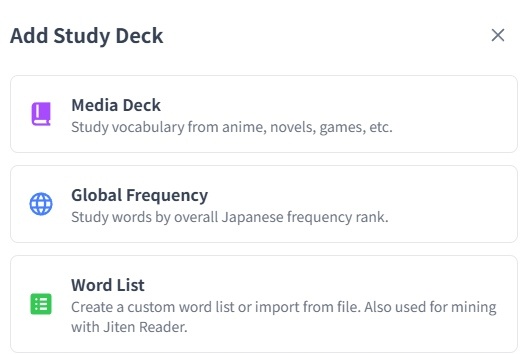
All 3 let you set a Card Order. Media and Global decks can also be narrowed to particular parts of speech and told to exclude kana-only words.
You can keep 60 decks, or 200 with Jiten+. There is a separate cap of 150,000 words across your word lists (300,000 with Jiten+), while global and media deck don't have any word limit.
Ordering and pausing decks
New cards are drawn deck by deck down the list until the day's allowance is full, so the order of your decks is their priority. Reorder with the Move up and Move down arrows, or drag the handle on the left. The decks currently supplying new cards are marked New cards from here.
That priority only applies under the default New card gathering setting. Set it to All decks equally and it rotates between them instead; set it to Cross-deck frequency and the order stops mattering.
The pause button deactivates a deck, which stops it contributing new words. Existing cards keep their schedule and keep coming up for review, unless you have set Review cards from to Study decks only, in which case deactivating silences that deck's reviews as well. Remove deletes the deck, but your words and they schedule stay safe. They just won't be available if you Study decks only is on until a new deck has them.
Doing your daily reviews
The count on the Study button is your due reviews plus your available new cards, each capped by today's limits you set in the SRS settings.
During a session:
- The front shows the word. Click it, press Space or Enter, or press Show Answer to reveal the reading, definitions, pitch accent and the example sentence.
- Grade with Again, Hard, Good or Easy, or switch to a two-button Again and Good in the settings. Each button shows the interval it would give you, which you can turn off.
- By default, keys
1to4to grade,Zto undo,Wto wrap up (stop the session early once the current card all the card you've failed are done).Escapealways wraps up whatever else you have bound. - Swipe left for Again and right for Good on mobile.
Once a card is flipped, a new row of actions appears. Bury for a day will not show you the card again until the next day. Suspend will not show you the card again until you unsuspend it manually in the card browser. Forget deletes the card and its whole review history, which is not undoable.
Study modes
Modalities in your SRS settings offers three ways to be tested: Standard cards, Write-in reading and Write-in meaning. Enable more than one and each card is assigned one randomly across the session. A card keeps its assigned mode for the whole session, so one you fail and see again comes back the same way. New cards stay as standard cards unless you say otherwise, and reading mode is skipped for words already written in kana.
Write-in reading converts romaji to kana as you type. Anything on the card that would give the answer away is replaced by a Hidden during write-in chip.
Timed review, a separate section, adds a countdown to each card that can reveal or fail it when time runs out. The stopwatch on the study screen turns it on for one session without changing the setting. It's a great way to force yourself to think quickly and spend less time on SRS.
Customising the card
Card appearance decides what each card shows. The simple view is a set of toggles with a live preview covering the front, the example sentence and the back. Customise layout (advanced) opens a drag-and-drop editor where a dozen block can go on the front or the back in any order, most of them with their own options.
Several presets are built-in and you can create your own, save them and export them with a simple code you can share.
The settings that decide your workload
Two matter more than the rest: New cards per day, 20 by default and you can set it to 0 to pause new words while you clear your backlog, and Max reviews per day, 200 by default, will limit the amount of time you spend daily, but be careful of build up and forgetting them. Both are in the SRS Study panel, which you can reach from your settings or from the Study Settings dialog during a session; they are the same controls in both places.
Alongside them sit how new cards and reviews interleave, where new cards are gathered from, whether reviews come from every word you track or only your active decks, and how leeches are handled. Once you have a few months of history, Tuning FSRS covers the retention target and the optimiser, and Understanding your SRS stats covers reading the results.